
- RAM is the temporary working space that allows the processor to execute applications and data immediately.
- The DDR4 standard stands out for offering higher transfer speeds and reduced energy consumption compared to previous versions.
- Choosing the right capacity (8GB to 64GB), frequency, and latency is crucial to prevent your computer from feeling slow.
- Physical compatibility depends strictly on the motherboard, differentiating between DIMM formats for desktops and SODIMM formats for laptops.
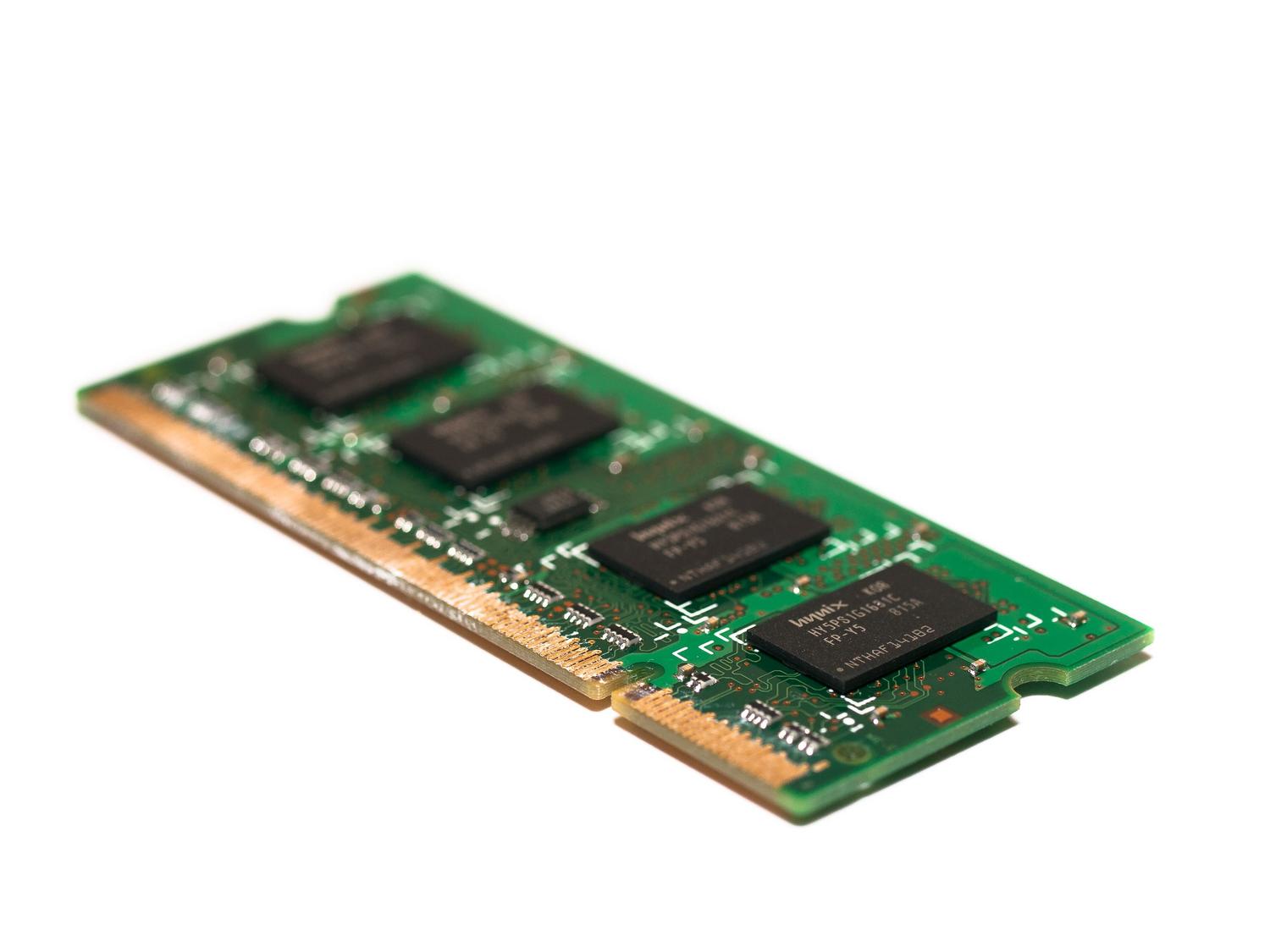
You've probably experienced your computer freezing or taking forever to open three browser tabs and a Word document. In most cases, the culprit isn't the processor or graphics card, but rather a lack of available workspace . This is where RAM comes in, that invisible yet vital component that makes everything run smoothly in our daily digital lives.
For those looking to upgrade their computer, DDR4 memory has established itself as the most balanced standard. It's not the most cutting-edge technology on the market, but it remains the most sensible option for millions of users who want a stable system without spending a fortune. Understanding how it works and what technical nuances make the difference between a high-performance machine and one that sluggishly slows down is crucial before making any purchase.
What exactly is RAM and what is it used for?
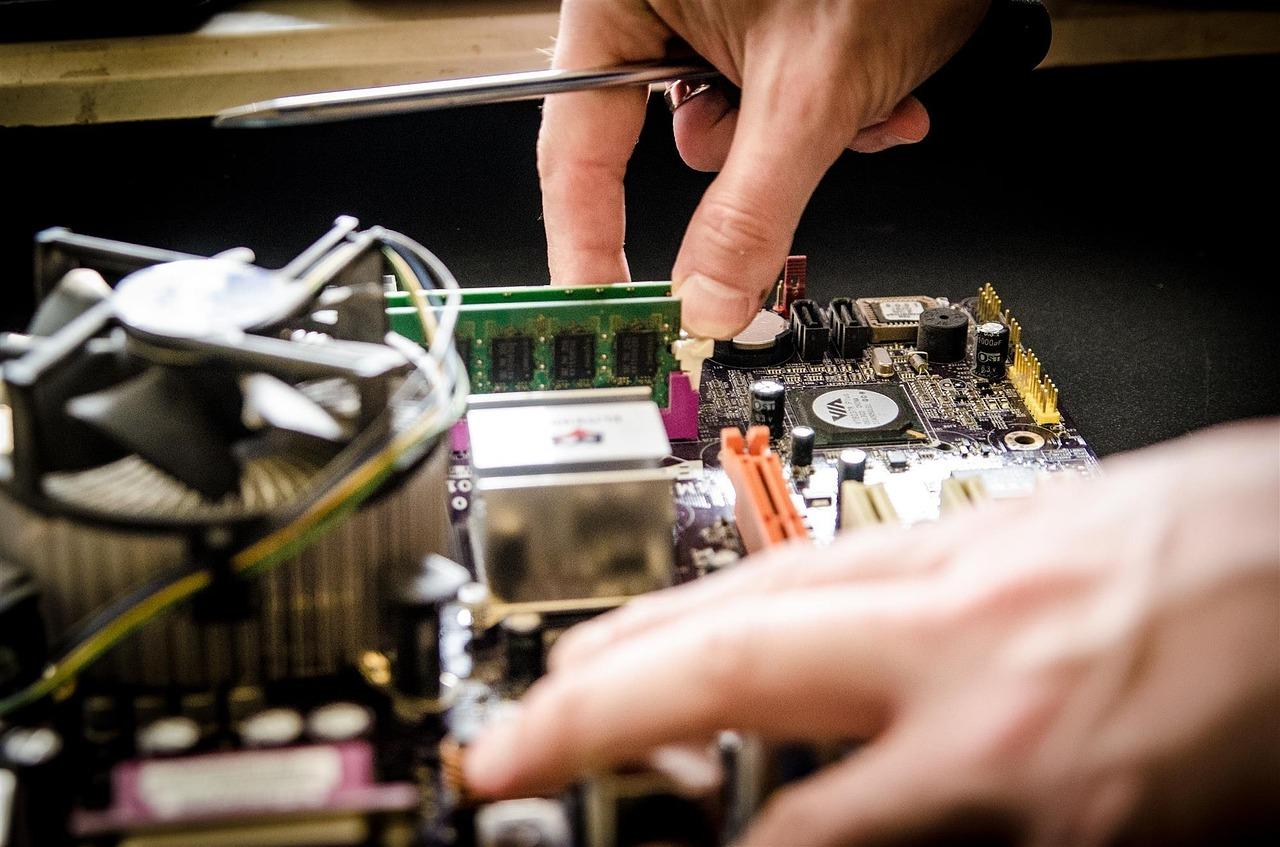
RAM, or random access memory , acts like your CPU's work surface. Imagine your hard drive as a giant filing cabinet where you store everything; to work with a document, you have to take it out of the filing cabinet and place it on the work surface. The bigger that work surface, the more documents you can have open simultaneously without them getting bogged down. That's why, when you have plenty of RAM , you can switch from a demanding game to Photoshop or a massive Excel spreadsheet without experiencing any lag.
A key characteristic is that it is volatile memory . This means it only stores data while the computer is powered on. The moment you turn off the machine, all the information stored in RAM is erased, since its function is not long-term storage, but rather the instantaneous execution of the instructions the processor needs at that precise moment.
The DDR ecosystem: From DDR2 to DDR5
When we talk about DDR (Double Data Rate) memory, we're referring to its ability to perform two operations per clock cycle . As generations have passed, efficiency has increased and power consumption has decreased. DDR2 and DDR3 memory are now relics for most, although DDR3 was the standard for years with speeds reaching up to 2.133 MHz and slightly higher voltages.
DDR4 memory represented a significant leap forward. It introduced much higher frequencies, typically ranging from 2.133 MHz to 4.800 MHz, and reduced the voltage (usually between 1,05V and 1,45V). Furthermore, it changed the way the memory controller connects to the modules, improving available bandwidth . Meanwhile, the newer DDR5 is already making a strong impact, offering speeds exceeding 6.000 MHz and much higher capacities, although it requires entirely new motherboards.
Technical concepts: Latency, Frequency, and Pins
To avoid buying blindly, it's essential to understand two often-confused concepts: frequency and latency. Frequency, measured in MHz, is the clock speed ; essentially, how many times the cycle repeats per second. Higher MHz means faster data transfer. However, there's also CL (CAS Latency), which is the response time from when data is requested until the RAM delivers it. Generally, we look for high frequencies and low latencies to achieve maximum performance.
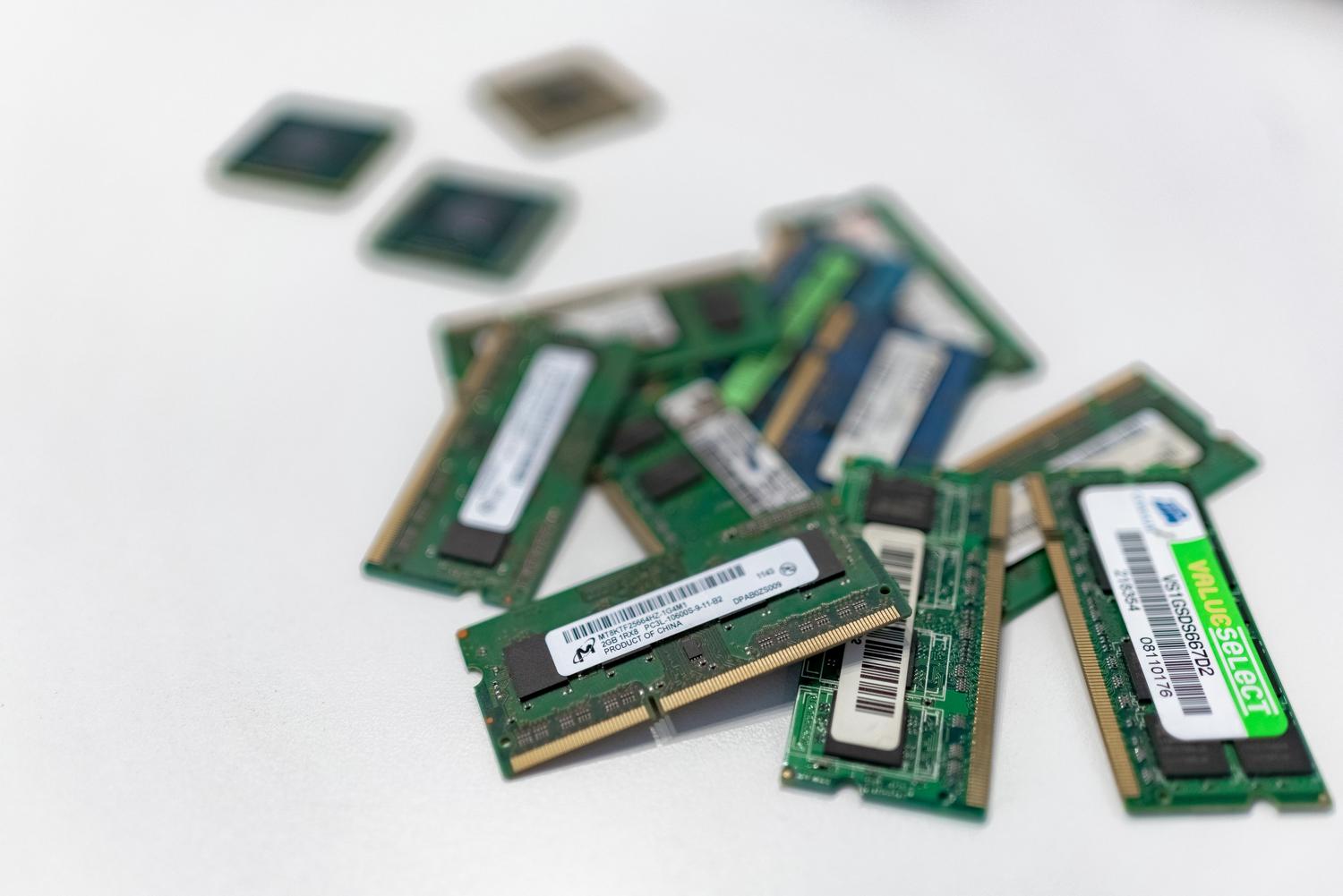
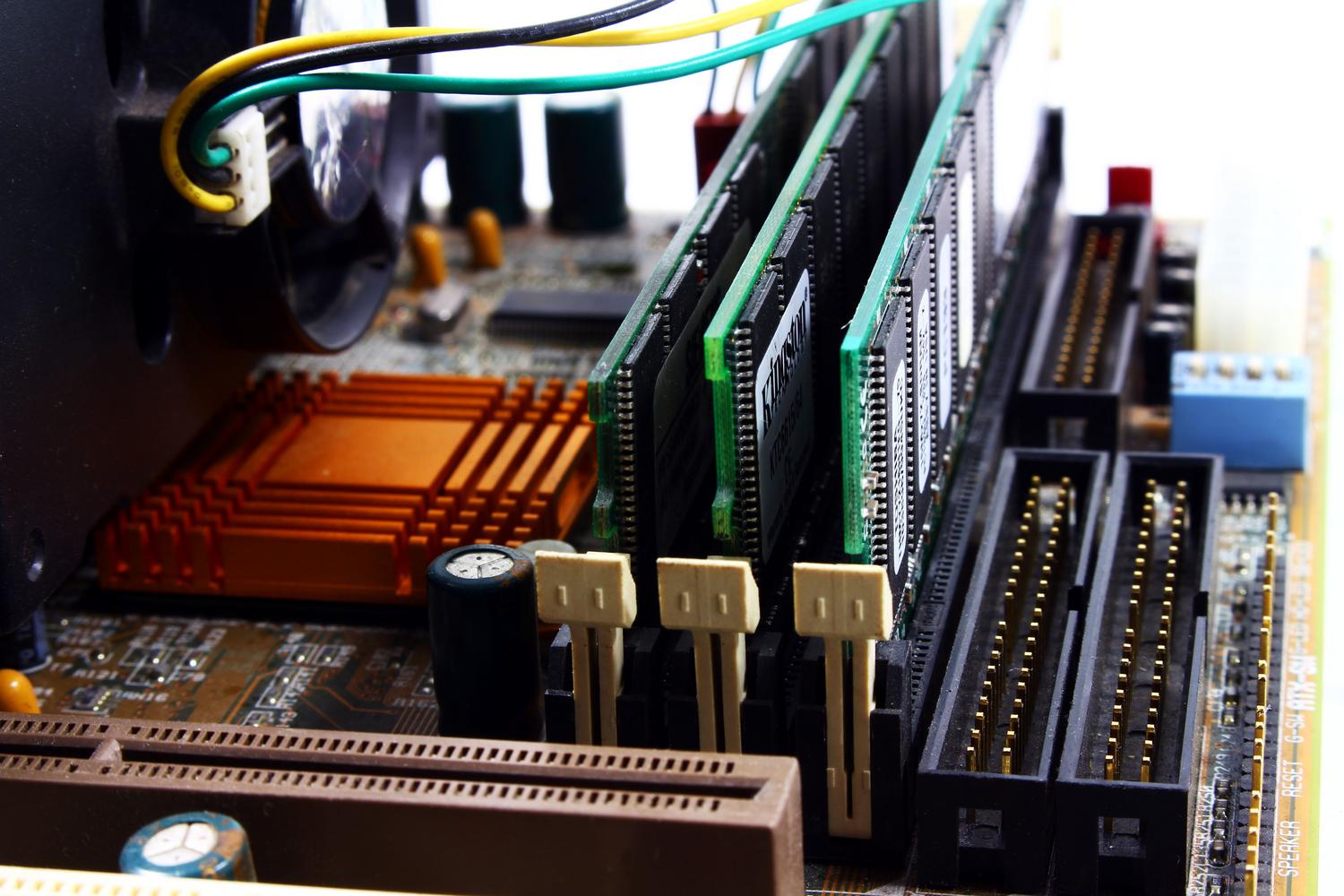
Physically, not all RAM modules are the same. If you have a desktop computer, you'll use DIMM modules , which are longer and have 288 pins in the case of DDR4. If you have a laptop, you'll need SODIMM modules , which are much more compact and have 260 pins. It's impossible to install one in the same slot as the other, so double-check your computer's form factor before ordering.
How much capacity do you really need?
There's no need to break the bank and buy 64GB if you're only going to browse the internet. The key is how you use your PC . For basic office or study tasks, 8GB might be enough, although these days that quickly becomes insufficient. For the vast majority of users, including gamers and remote workers, 16GB is the sweet spot ; it's the minimum for comfortable use without worrying about memory usage.
If you're involved in 4K video editing, 3D modeling, or using virtual machines, then 32GB or 64GB makes perfect sense. In these cases, RAM becomes the bottleneck, and upgrading it drastically improves professional productivity . A useful trick is to install the memory in a kit (for example, two 8GB modules instead of one 16GB module) to take advantage of dual-channel memory and gain extra speed.
Tips for a smart purchase
Before clicking the buy button, make sure your motherboard supports the RAM speed you've chosen. There's no point in buying 3600 MHz modules if your motherboard limits them to 2400 MHz. Also, remember that to reach the advertised speed, you often need to enter the BIOS and enable the XMP (Extreme Memory Profile) , as RAM is usually configured to a lower base speed by default.
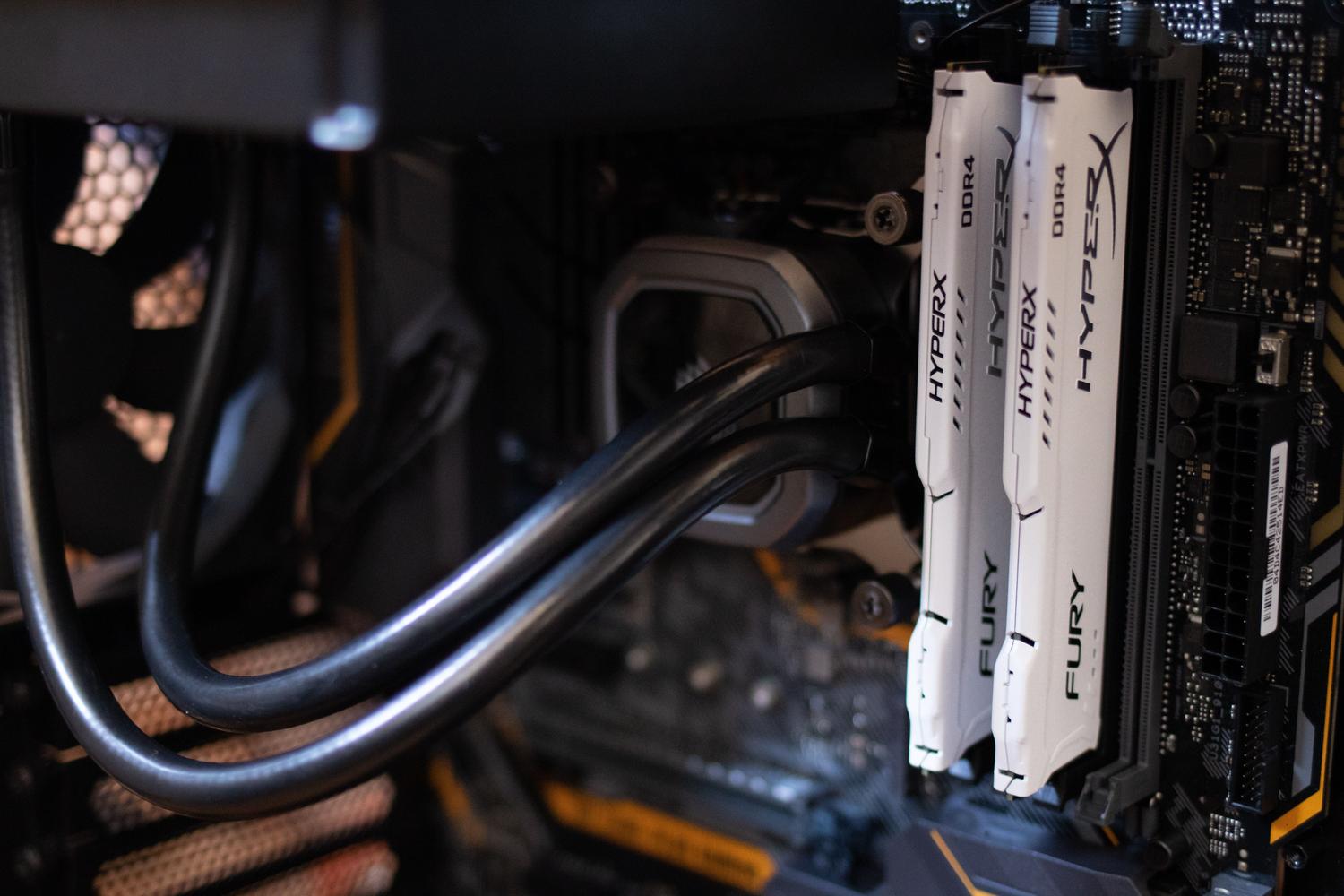
If you're building a gaming PC, check if it includes heat sinks . While not critical for normal use, they prevent the memory from overheating during long gaming sessions. And if you're into aesthetics, ARGB lighting control is the perfect complement to fully customize your setup.
Choosing the right RAM involves balancing capacity, speed, and physical compatibility with the motherboard. While DDR4 remains a safe and economical choice due to its broad compatibility and solid performance, it's vital to pay attention to the pin configuration and whether it's DIMM or SODIMM to avoid installation errors. Ultimately, optimizing this component is the most direct and effective way to eliminate system sluggishness and improve multitasking performance.